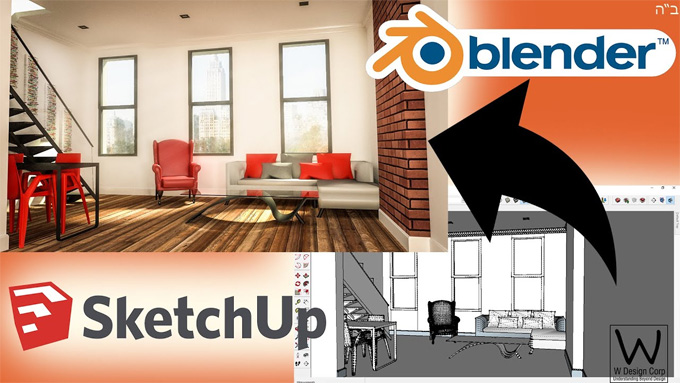

How to Import Sketchup Files on Blender

The Blender is an open-source 3D computer graphics software tool set. The Blender software is capable of running different operating systems, for example, Windows, Linux, macOS, Haiku, BSD, and IRIX. The Blender software has been used to create animated films, art, 3D printed design models, visual effects, motion graphics, interactive 3D applications, and virtual reality. The Blender software has also been used for video games by users.

This software application was founded in 1994, but it was made available to the public in 1998. In 2000, the Blender software was finally presented as an open-source software, after conducting a successful crowdfunding campaign. The Blender software is a free 3D graphics suite which plays an important role in the movie industry.
How to import a SketchUp model into Blender
To import the SketchUp design model into the Blender software, the user has to follow several steps, which are as follows:
➢ At first, the users have to open the latest version of the Blender software.
➢ After opening the software, the user has to navigate to the Edit option and go to the Preferences.
➢ In the next step, the user has to click on the Add-ons, and after that, the user has to select the dropdown arrow and has to click on the install button from Disk.
➢ In the next step, the users have to locate the downloaded ZIP file, and then they have to click on the install button on the Disk.
➢ The user has to go to the SimLab tab, and after this step, they have to locate the SKP Importer section.
➢ After that, the user has to go to the File option, then click on the Import option and has to click on the SketchUp option to import the SketchUp file into the Blender software.
➢ In the case that the user wants to activate the trial option, they have to open the Settings, and then they have to follow the license steps to get the free trial of this software.
Supporting features of the Blender software
Modelling feature
A variety of geometric primitives has been supported by the Blender software, which includes an advanced polygonal modelling system and supports several design features, including bevelling, extrusion, and subdividing.
Sculpting feature
The Blender software also has a multi-resolution digital sculpting feature, including remeshing, dynamic topology, re-symmetrisation, and decimation. This sculpting feature helps to simplify the design model for exporting purposes.
Simulation feature
The Blender software has been used to simulate rain, smoke, dust, fluids, cloth, hair, and rigid bodies.
Geometry nodes
A node graph system has been offered by the Blender software, which is capable of creating and manipulating geometry.
Fluid simulation feature
With the help of the Blender software, users are able to simulate liquids, for example, water being poured into a cup.
Cloth simulation feature
The Blender software offers a cloth simulation feature, which is achieved by simulating the vertices with a rigid body simulation.
Rendering feature
Three render engines have been included in the Blender software, which are EEVEE, Workbench and Cycles. Above these rendering engines, Workbench acts as the real-time render engine and produces first renderings, EEVEE acts as the physically based real-time renderer and provides a real-time viewport for creating assets, and Cycles acts as the path tracing render engine, which supports rendering through both the CPU and the GPU.
GPU rendering feature
The GPU rendering feature of the Blender software helps to speed up the rendering time. Multiple GPUs have been supported by this software, which helps to create a render farm and speed up the rendering process.
Animation feature
The Blender software also has animation capabilities, including armatures, inverse kinematics, hooks, shape keys, non-linear animation, curve- and lattice-based deformations, constraints, and vertex weighting, which allow users to the 2D animation within a full 3D pipeline.
How to achieve successful renders of the SketchUp model in Blender software
To achieve successful renders of the SketchUp model in the Blender software:
To learn more, watch the following video tutorial.
Video Source: Blender for Archviz
Download Sketchup Importer
1. The users have to verify the geometry integrity. In this context, the users have to inspect their design models for any geometry inconsistencies which may have emerged during the import process. In addition, the user also has to eliminate any extraneous vertices or faces from the design to enhance clarity.
2. The user also has to optimise the lighting feature of the SketchUp model to get successful renders by experimenting with various lighting configurations. In this context, the classic three-point lighting method is one of the effective methods to showcase the details of the design model.
3. The user can also employ high-resolution textures, which can impact the final renders by retaining the impressive details in the final output.