|
How to apply various sketchup tools for creating the drawings of a city
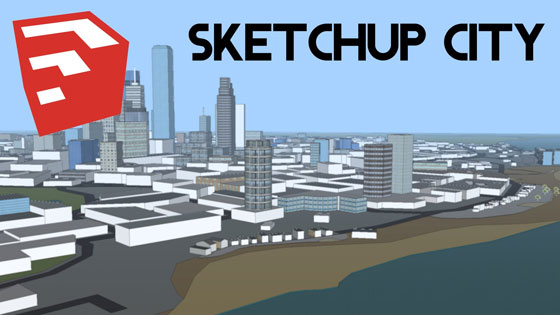
Justin Kreule created this exclusive sketchup video for sketchup professionals. This sketchup video tutorial is designed for beginner’s sketchup user. In this sketchup tutorial video Justin briefly shows how to use sketchup for creating the drawing of a city.
Sketchup contains various toolset which are very useful for users to draw anything in sketchup. For generating your preliminary models, line tool and inference engine are most suitable for the users.
In order to draw swiftly, the users can take help from various concepts provided by SketchUp. These range from dividing and healing, pushing and pulling, sticky geometry, autofold, and intersections.
A large number of entities in SketchUp like arcs and circles, are created with small lines or edges. Besides line tool, there are other tools inside SketchUp which can be fruitful for the users to speed up their drawing process. Some of these tools are used for generating common entities like a circle, arc, polygon, or freehand line. With other tools, the users will be able to instantly sketch complicated models just by adjusting your models (splitting, skewing, and mingling geometry together).
SketchUp tools are segregated into five categories which range from principal tools (tools useful for choosing and resiving geometry), drawing tools (tools for producing geometry), modification tools (tools applied for revising accessible geometry), construction tools (tools to be applied for producing construction lines or points as well as validating your model), camera tools (tools useful for viewing geometry), and walkthrough tools (tools utilized for analyzing your model). Given below the detailed lists of all the Drawing, Principal, Modification, and Construction tools:
Tool |
Type |
Notes |
Line |
Drawing |
Can be used to create, intersect, or divide a face or other line (edge) |
Arc |
Drawing |
Can be used to create, intersect, or divide a face or other line (edge) |
Freehand |
Drawing |
Can be used to create, intersect, or divide a face or other line (edge) |
Rectangle |
Drawing |
Can be used to create, intersect, or divide a face or other line (edge) |
Circle |
Drawing |
Can be used to create, intersect, or divide a face or other line (edge) |
Polygon |
Drawing |
Can be used to create, intersect, or divide a face or other line (edge) |
Select |
Principal |
Used to select entities |
Eraser |
Principal |
Used to delete geometry and heal faces |
Paint Bucket |
Principal |
Used to applymaterials (combinations of color andtexture) |
Position Texture* |
Modification |
Used to manipulate materials painted on a surface. |
Move |
Modification |
Used to move, distort (autofold), and copy entities |
Tool |
Type |
Notes |
Rotate |
Modification |
|
Scale |
Modification |
|
Push/Pull |
Modification |
Used to expand and shrink geometry |
Follow Me |
Modification |
Used to duplicate a profile along a path |
Intersect With Model* |
Modification |
Used to create complex geometry by piecing together separate geometry |
Offset |
Modification |
|
3D Text |
Construction |
Used to draw 3 dimensional text geometry |
Tape Measure |
Construction |
Used to get a measurement and create construction line entities |
Protractor |
Construction |
Used to set angles |
Axes |
Construction |
|
Dimension |
Construction |
Used to calculate and display a dimension |
Text |
Construction |
|
Section Plane |
Construction |
Used to create section cut effects |
The users (Microsoft Windows) can access the above toolset from menu bar or from tool palette (Mac OS X).
Nearly all drawing tools can be used for revisions. As for instance, the line tool is utilized to draw a line so as to break up a face.
Ref.: help.sketchup.com
|
|