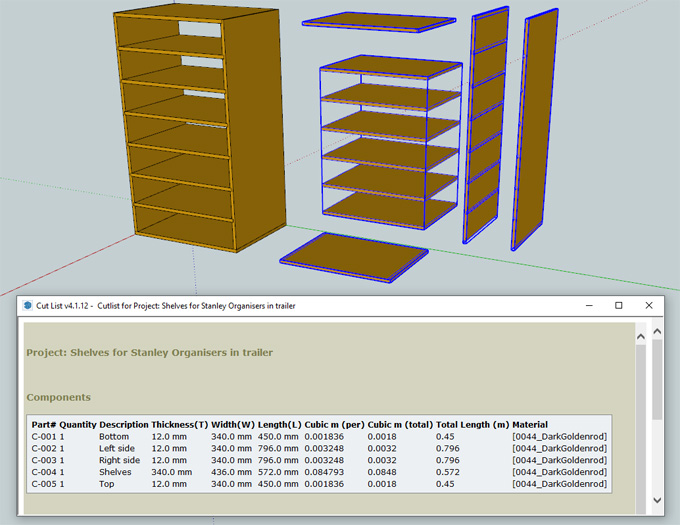
How to get a CutList from your SketchUp Model
Concept of the CutList 4.1 Plugin for SketchUp Software
The CutList 4.1 plugin has been developed by Steve Racz for the SketchUp software. The CutList 4.1 plugin has been designed to generate optimised cut lists and cutting diagrams for the SketchUp design models. The CutList 4.1 plugin for the SketchUp software is able to read and process the geometry and dimensions of the design model.
Thus, this SketchUp plugin can generate a cut list which can minimise waste and material usage in the design model. With the help of the CutList 4.1 plugin, the user can generate cut lists, labels, cutting diagrams, exploded views, DXF and SVG for woodworking projects or similar design projects. The CutList 4.1 plugin also helps to inspect the design components and material properties of a design scene.
This SketchUp plugin has been supported by a SmartPaint tool, which helps to support the assignment of the design materials to the SketchUp components. The CutList 4.1 plugin can also locate the design parts in a model, which helps to show the grain direction and orientation of the design components.
The CutList 4.1 plugin is compatible with different versions of the SketchUp software, including SketchUp 2022, SketchUp 2023, SketchUp 2024, SketchUp 2025 and SketchUp 2026. The CutList 4.1 plugin for the SketchUp software is compatible with both Windows and Mac operating systems. The supporting languages for the CutList 4.1 plugin are Czech, German, English, French, Spanish, Italian, Brazilian Portuguese, Polish, Simplified Chinese, Russian, and Dutch.
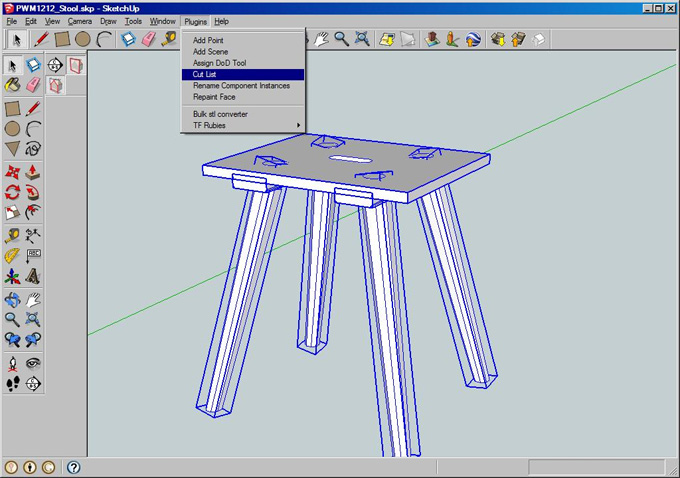
Learn about the design features of the CutList 4.1 plugin for SketchUp software
1. The CutList 4.1 plugin allows users to define and customise the design materials for the design project. With the help of the CutList 4.1 plugin, users are able to specify the width, thickness and length of each design material. This information generated by the CutList 4.1 plugin has been used to produce the optimised cut list.
2. The CutList 4.1 plugin can generate the cut lists automatically on the basis of the design materials and model dimensions that have been defined by the users. This SketchUp plugin also helps to show the dimensions and quantities of each cut. This design feature helps to save the design time and effort of the users by reducing the manual calculations and writing down each cut.
3. With the help of the CutList 4.1 plugin, the users are able to generate the cutting diagrams for each design material, thus helping to show the design order and directions of each cut. This design feature helps to visualise the cutting process, as well as helps to reduce the risks of design errors in the design project.
4. The CutList 4.1 plugin uses advanced optimisation algorithms, which help to minimise design waste. As a result, the user can use less design material, as well as reduce the environmental impacts and thus, can also save the overall project costs.
5. The CutList 4.1 plugin has been used in conjunction along with the other SketchUp plugins, for example, CutList Bridge and SketchUp Make Faces. Thus. the CutList 4.1 plugin has become a versatile design tool, which can be customised to meet the specific design needs of the users.
6. The CutList 4.1 plugin also provides support for the sub-assemblies in the design model.
7. The CutList 4.1 plugin is able to produce data in multiple output formats, for example, HTML web pages, scalable Vector Graphics (SVG) files or comma-Separated Values (CSV) spreadsheets, which plays an important role in printing and scaling the SketchUp design models.
Discuss the process of installing the CutList 4.1 plugin for SketchUp software
To install the CutList 4.1 plugin, the user has to follow several steps, which are as follows:
1. At first, the user has to download the CutList 4.1 plugin from the SketchUp Extension Warehouse, or they can also download it from the official website.
2. In the next step, the user has to open the SketchUp software and go to the “Window” menu.
3. After that, the user has to click on the “Extension Manager” option, and next, they have to click on the “Install extension” button to complete the installation process.
4. In the next step, the user has to select the downloaded file and has to click on the “Open” button.
5. After that, the user has to restart the SketchUp software, then they have to open the design model for which they want to generate a cut list.
6. In the next step, the user has to go to the “Extensions” menu and click on the “OpenCutList” option to access this SketchUp plugin.